
How to Connect a PS5 Controller (PS5, PC, Phone and Mac)
Here is how to connect a PS5 controller in under a minute. On a PS5, plug it in with a USB cable and press the PS button. On a PC, phone or Mac, hold the Create and PS buttons until the light bar blinks. Then pick the controller in your device’s Bluetooth menu.
The steps below cover every device, what the lights mean, and what to do when it will not pair.
Before You Start: What You Need
You need three things: a charged DualSense controller, a USB-C cable that carries data, and a supported device. Sony warns that cables marked “charge only” will not work. Look for one labeled “charge and sync”.
Sony lists these minimum versions for Bluetooth pairing:
| Device | Minimum system version |
|---|---|
| Windows PC | Windows 10 (64-bit) or Windows 11 |
| Mac | macOS Big Sur 11.3 |
| iPhone and iPad | iOS 14.5 and iPadOS 14.5 |
| Apple TV | tvOS 14.5 |
| Android | Android 12 |
How to Put a PS5 Controller in Pairing Mode
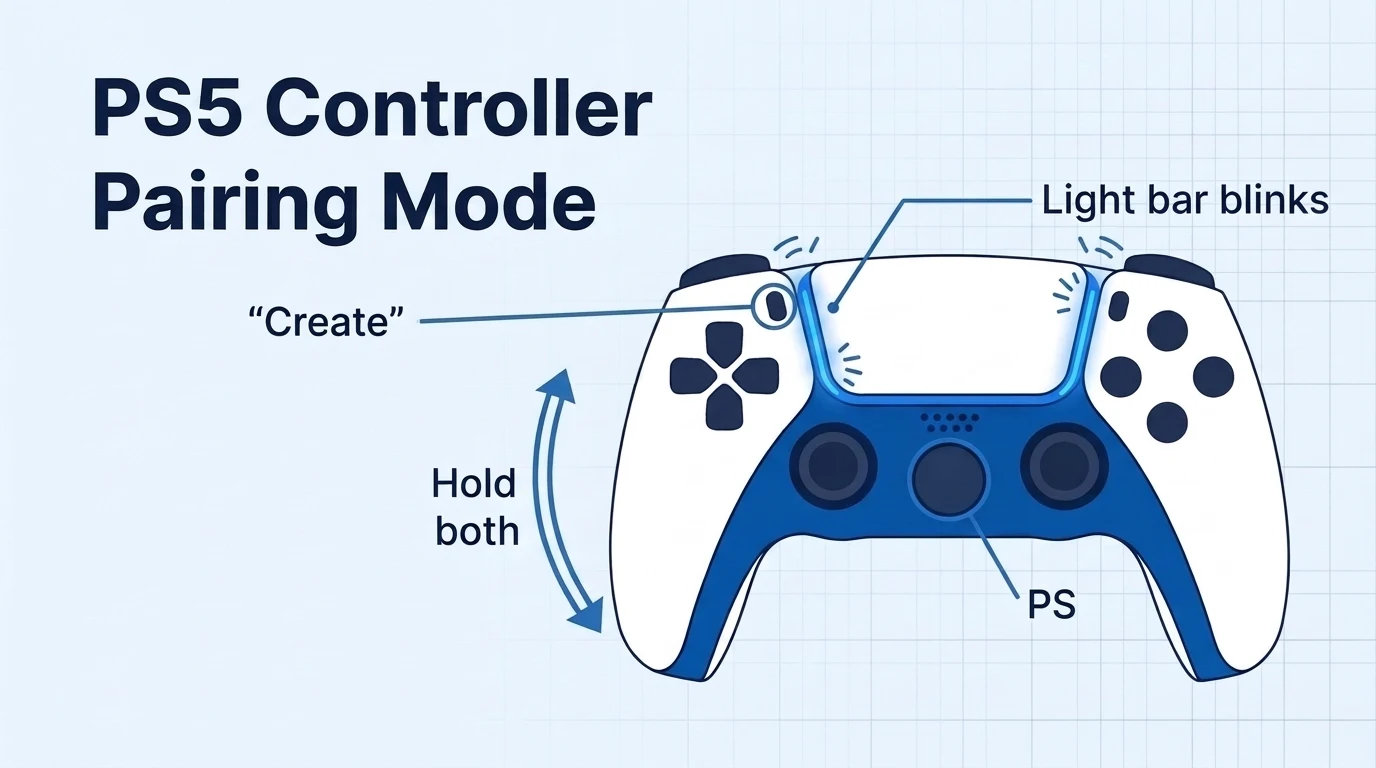
Pairing mode lets a phone, PC or console find the controller. Every Bluetooth method in this guide starts here.
- Turn the controller off. If the player indicator below the touchpad is lit, hold the PS button until it goes dark.
- Unplug any USB cable.
- Press and hold the Create button. It is the small button to the upper left of the touchpad.
- While holding Create, press and hold the PS button.
- Let go when the light bar around the touchpad starts blinking.
The light bar tells you what the controller is doing.
| What you see | What it means |
|---|---|
| Light bar blinks, player indicator off | Pairing mode, waiting for a device |
| Light bar blinks, then stays on, player indicator lights | Paired and connected |
| Light bar and player indicator flash twice | A pairing slot was selected (see the four-device section) |
How to Connect a PS5 Controller to a PS5
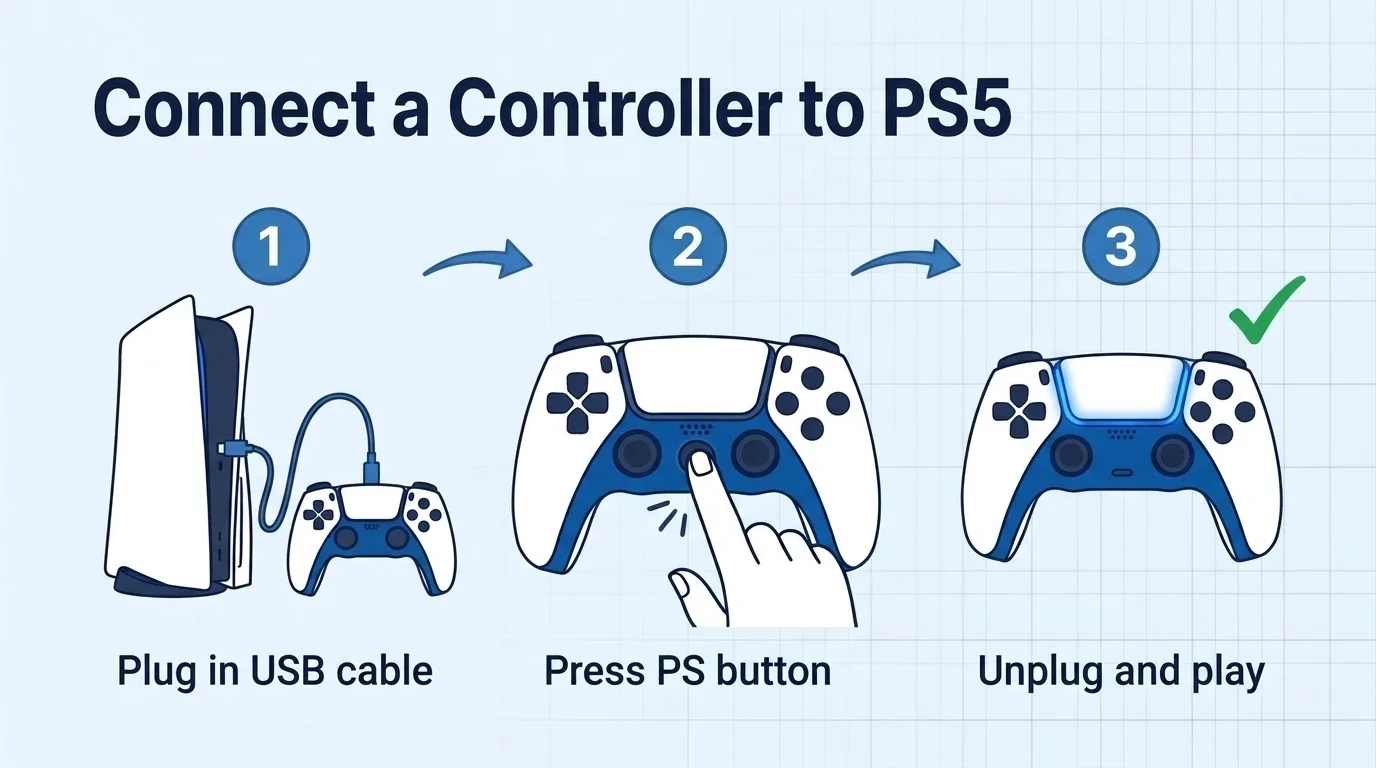
The first controller always needs a cable. After that, you can add more without one.
First Time: Connect With a USB Cable
Sony’s steps are short:
- Turn on your PS5.
- Plug the controller into the console with the USB cable from the box.
- Press the PS button. The light bar blinks, then the player indicator lights up.
- Unplug the cable. The controller now works wirelessly.
Use the same steps to reconnect a controller after you used it on a PC or phone.
Add a Second Controller Without a Cable
You can pair a new controller using one that already works.
- On the working controller, go to Settings, then Accessories, then General, then Bluetooth Accessories.
- On the new controller, hold Create and the PS button until its light bar blinks.
- Select the new controller on screen with the working one.
- The light bar blinks, then the player indicator lights. It is paired.
How Many Controllers Can a PS5 Use?
A PS5 supports up to four controllers at the same time. Each one shows a different player indicator so players can tell them apart.
How to Connect a PS5 Controller to a PC
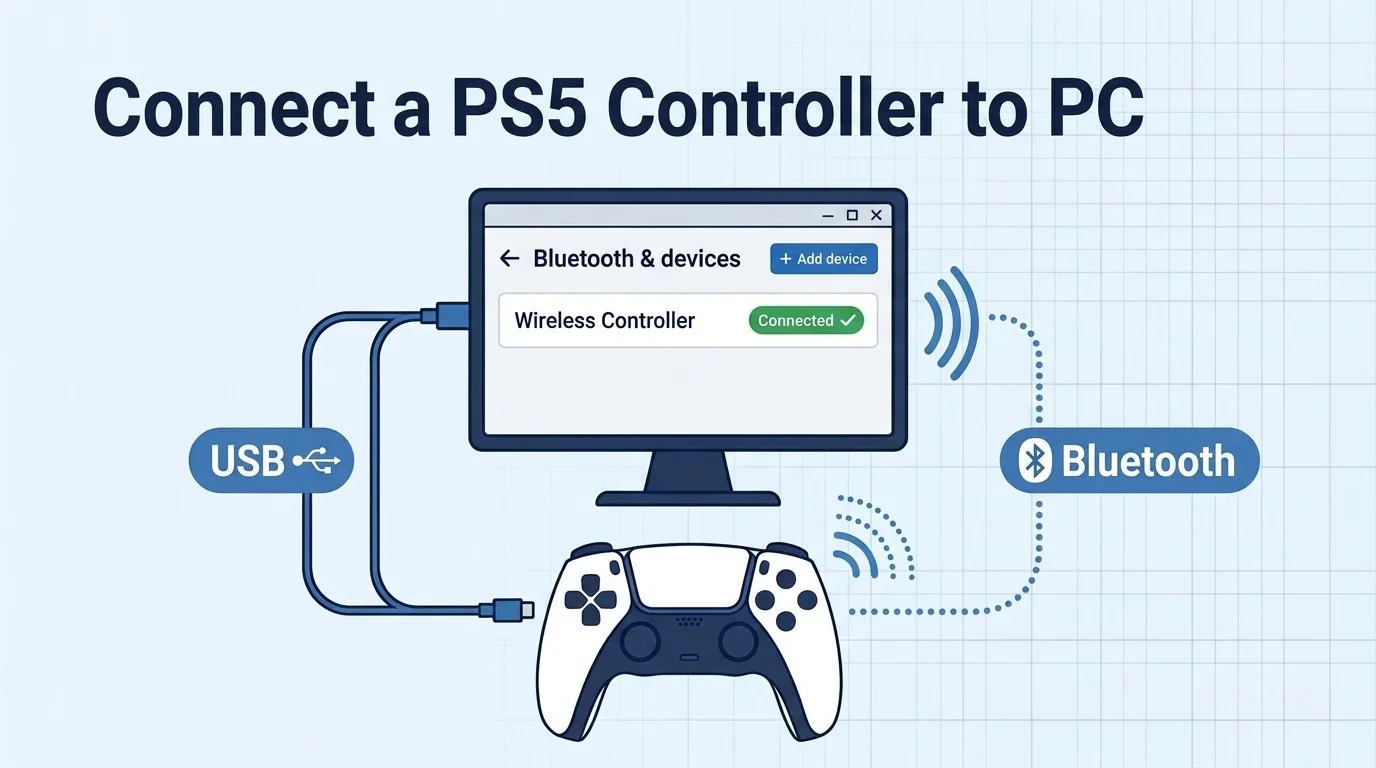
Windows supports the DualSense without extra drivers. A cable gives you the most features. Bluetooth gives you freedom from wires.
With a USB Cable
Plug the USB-C end into the controller and the other end into your PC. Windows detects it in a few seconds. A wired connection is the only way to get haptic feedback on PC, according to Sony.
With Bluetooth on Windows 11
- Press Windows and I to open Settings.
- Select Bluetooth & devices and turn Bluetooth on.
- Click Add device, then choose Bluetooth.
- Put the controller in pairing mode with Create and PS.
- Select Wireless Controller from the list. The light bar stops blinking when it connects.
On Windows 10, the path is Settings, then Devices, then Bluetooth & other devices, then Add Bluetooth or other device.
Set It Up in Steam
Steam supports the DualSense directly. Open Steam, go to Settings, then Controller, and turn on Steam Input for PlayStation controllers. Steam then shows PlayStation button icons in supported games and lets you remap buttons per game.
Use It in PCSX2
The DualSense also works in the PCSX2 emulator. The PCSX2 controller guide recommends these steps:
- Open Settings, then Controllers.
- Use SDL as the input source.
- Turn on DualShock 4 / DualSense Enhanced Mode. It enables light bar control and proper vibration.
- Open Controller Port 1, click Automatic Mapping and pick your DualSense.
If Steam is running, it can send extra key presses to PCSX2. Close Steam or turn off its controller support while you play. Need the BIOS too? Follow our PS2 BIOS for PCSX2 guide. You can also find every PS2 BIOS region on our homepage.
How to Connect a PS5 Controller to an iPhone or iPad
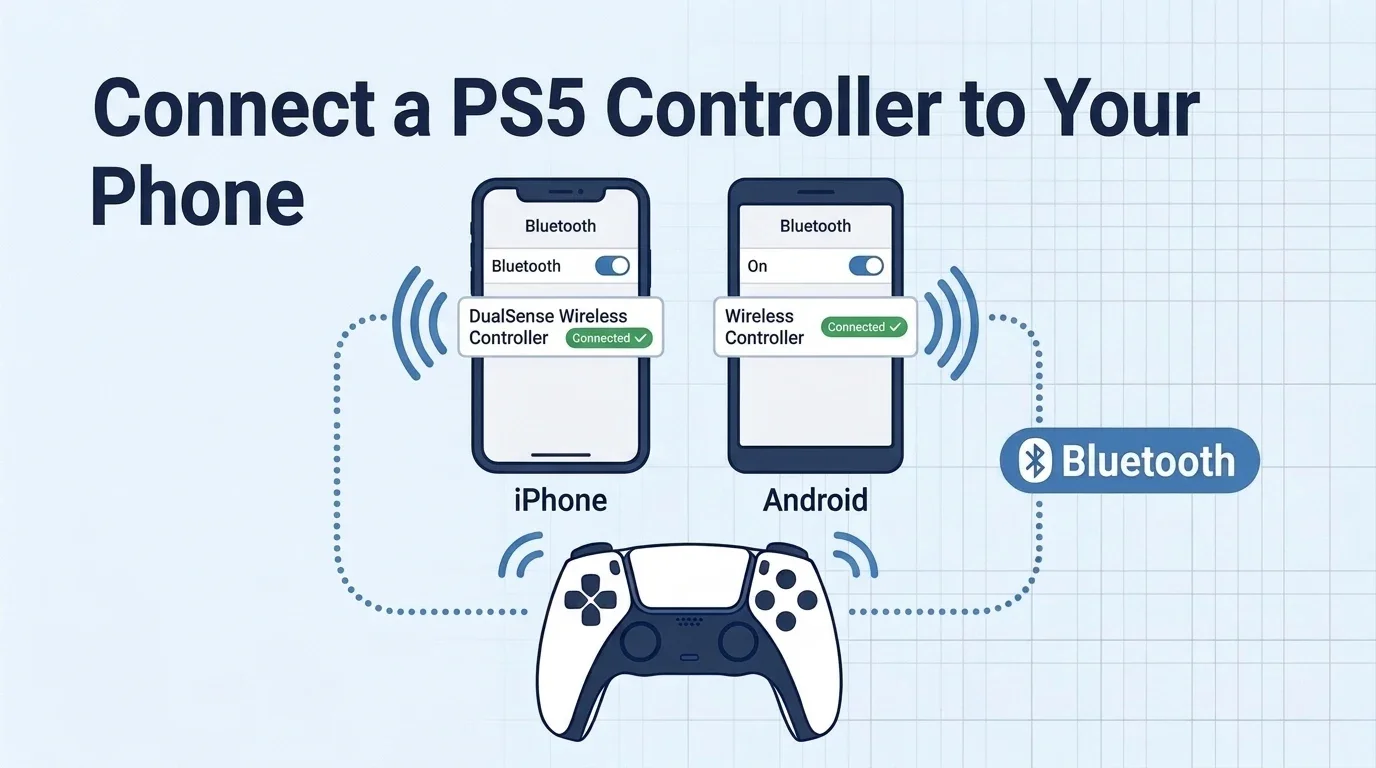
Apple supports the DualSense on iPhone, iPad and Apple TV.
- Put the controller in pairing mode with Create and PS.
- On your iPhone or iPad, open Settings, then Bluetooth.
- Tap DualSense Wireless Controller under Other Devices.
- If it pairs but does not connect, press the PS button once.
You can now play Apple Arcade games, other controller-ready apps and PS Remote Play. It also works with a PS2 emulator for iPhone.
How to Connect a PS5 Controller to an Android Phone
You need Android 12 or later.
- Put the controller in pairing mode.
- Open Settings and go to the Bluetooth menu. On a Pixel, it is Connected devices, then Pair new device. On a Samsung Galaxy, it is Connections, then Bluetooth.
- Tap Wireless Controller when it appears.
- Wait for the light bar to stop blinking.
Adaptive triggers and haptics do not work on Android phones, according to Sony.
How to Connect a PS5 Controller to a Mac
Any Mac on macOS Big Sur 11.3 or later can pair the DualSense over its built-in Bluetooth.
- Put the controller in pairing mode.
- Open System Settings, then Bluetooth. On older macOS versions, open System Preferences, then Bluetooth.
- Click Connect next to DualSense Wireless Controller.
You can also plug it in with a USB-C cable. The headset jack only works over that wired connection.
Which DualSense Features Work on Each Device?
Basic buttons and sticks work everywhere. The special features do not. This table follows Sony’s own list.
| Feature | PS5 | Windows PC | Mac | iPhone and iPad | Android |
|---|---|---|---|---|---|
| Haptic feedback | Yes | USB only | No | No | No |
| Adaptive triggers | Yes | Game dependent | Game dependent | Game dependent | No |
| Built-in mic and speaker | Yes | Yes, if the game supports it | No | No | No |
| Headset jack | Yes | USB only | USB only | No | No |
Use One Controller With Up to Four Devices
A DualSense can remember four devices at once. You switch between them with a button combo instead of pairing again. Sony documents the slots like this:
| Slot | Button to hold with PS |
|---|---|
| Slot 1 | Triangle |
| Slot 2 | Circle |
| Slot 3 | Cross |
| Slot 4 | Square |
- Pair to a chosen slot: hold the slot button and the PS button for more than 5 seconds. Then pick the controller on your device.
- Pair to the next free slot: hold Create and the PS button for at least 3 seconds.
- Switch devices: hold the slot button and the PS button for about 3 seconds. The player indicator shows the slot number.
When all four slots are full, a new pairing replaces the slot you used least recently.
PS5 Controller Won’t Connect? Try These Fixes
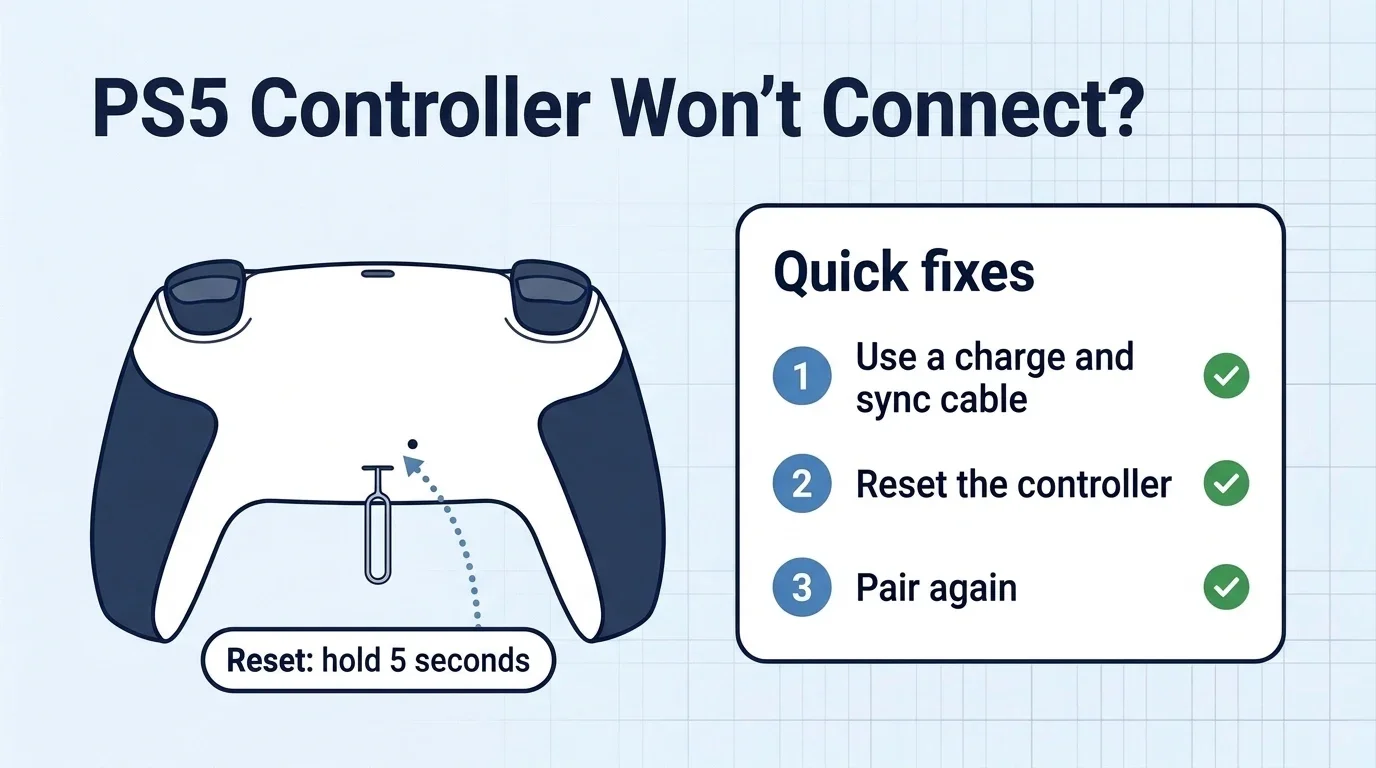
Most pairing problems come from a charge-only cable, a controller still linked to another device, or a stuck connection. A reset clears the last one.
How to Reset a PS5 Controller
- Turn off your PS5.
- Unplug the controller.
- Find the small hole on the back, beside the Sony logo.
- Push a pin into the hole and hold the reset button for at least 5 seconds.
- Connect the controller to the PS5 with the USB cable and press the PS button.
These steps come from Sony’s troubleshooting page. If the problem stays, Sony suggests updating the PS5 system software, then using its repair tool.
Other Fixes
| Problem | Fix |
|---|---|
| Controller does nothing when plugged in | Use a cable labeled “charge and sync”. Try another USB port |
| Light bar keeps blinking blue | It is still in pairing mode. Select it on your device or press the PS button to stop |
| Not listed on your PC or phone | Turn the controller off, then enter pairing mode again. Move within a few feet of the device |
| Pairs but keeps dropping | Charge it, remove it from the device’s Bluetooth list, then pair again |
| Worked on PC, not on PS5 | Plug it into the PS5 with the cable and press the PS button to re-pair |
FAQs
Can you connect a PS5 controller without a cable?
Yes, if another controller already works on the console. Go to Settings, Accessories, General, Bluetooth Accessories, then hold Create and PS on the new controller and select it. The very first controller needs a cable.
Why is my PS5 controller blinking blue?
A blinking blue light bar means the controller is in pairing mode. It is waiting for a device. Select it in your Bluetooth menu, or press the PS button while it is plugged into your PS5.
Can I use a PS5 controller on a PS4?
No. The PS4 does not support the DualSense for games or menus. The controller may charge from a PS4 USB port, but you need a DualShock 4 to play on that console. See which PS2 games you can play on PS4.
Can I use a PS4 controller on a PS5?
Yes, but only for PS4 games played on the PS5. Sony confirmed the DualShock 4 cannot play PS5 games, because those games are built around DualSense features like haptics and adaptive triggers.
Do I need to re-pair after using it on my PC?
Usually yes. Plug it into your PS5 with a cable and press the PS button. To skip re-pairing, give each device its own slot and switch with a slot button plus PS.
Why won’t my PS5 controller charge?
You may be using a charge-only cable or a weak USB port. Use a “charge and sync” cable and another PS5 port. Check the battery level through the PS button, then Accessories, in Control Center.